This guide shows you how to create engaging WhatsApp carousel message templates in Affinect. Carousel messages allow you to showcase multiple offers, products, or experiences within a single message—each with its own media, content, and call-to-action—helping you drive higher engagement and conversions.
Affinect
Go to Marketing Tools and select WhatsApp Templates.
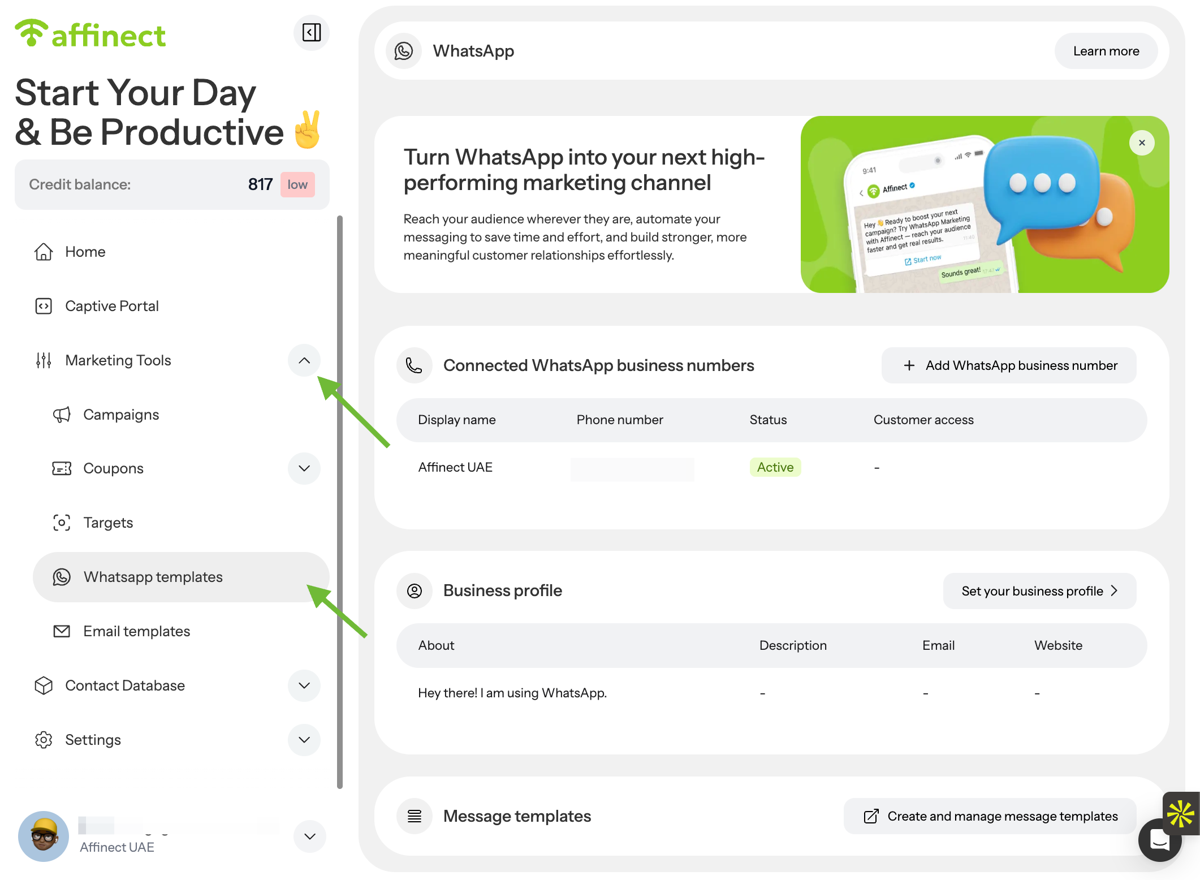
A. Navigate to Marketing Tools
B. Click on WhatsApp templates
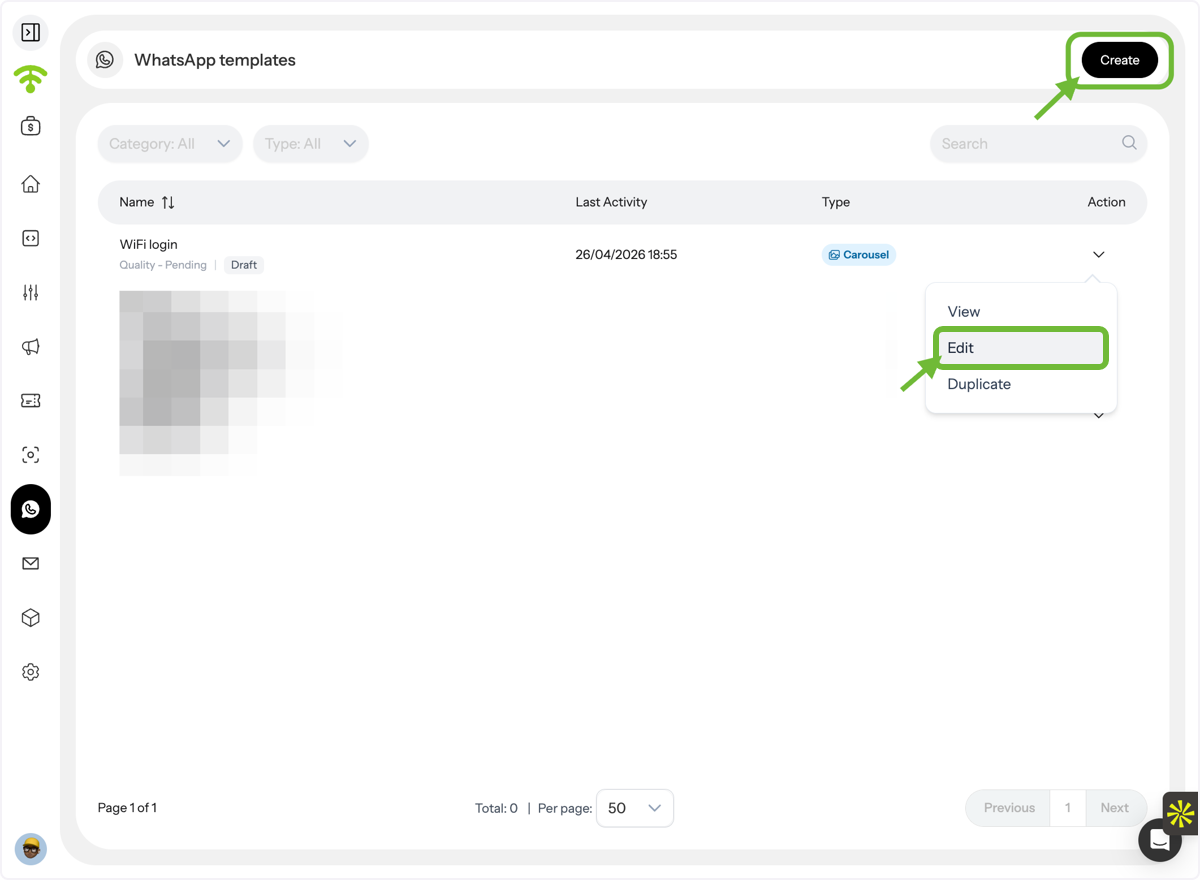
Create or Edit a Template
Click Edit to modify an existing draft or create a new template.
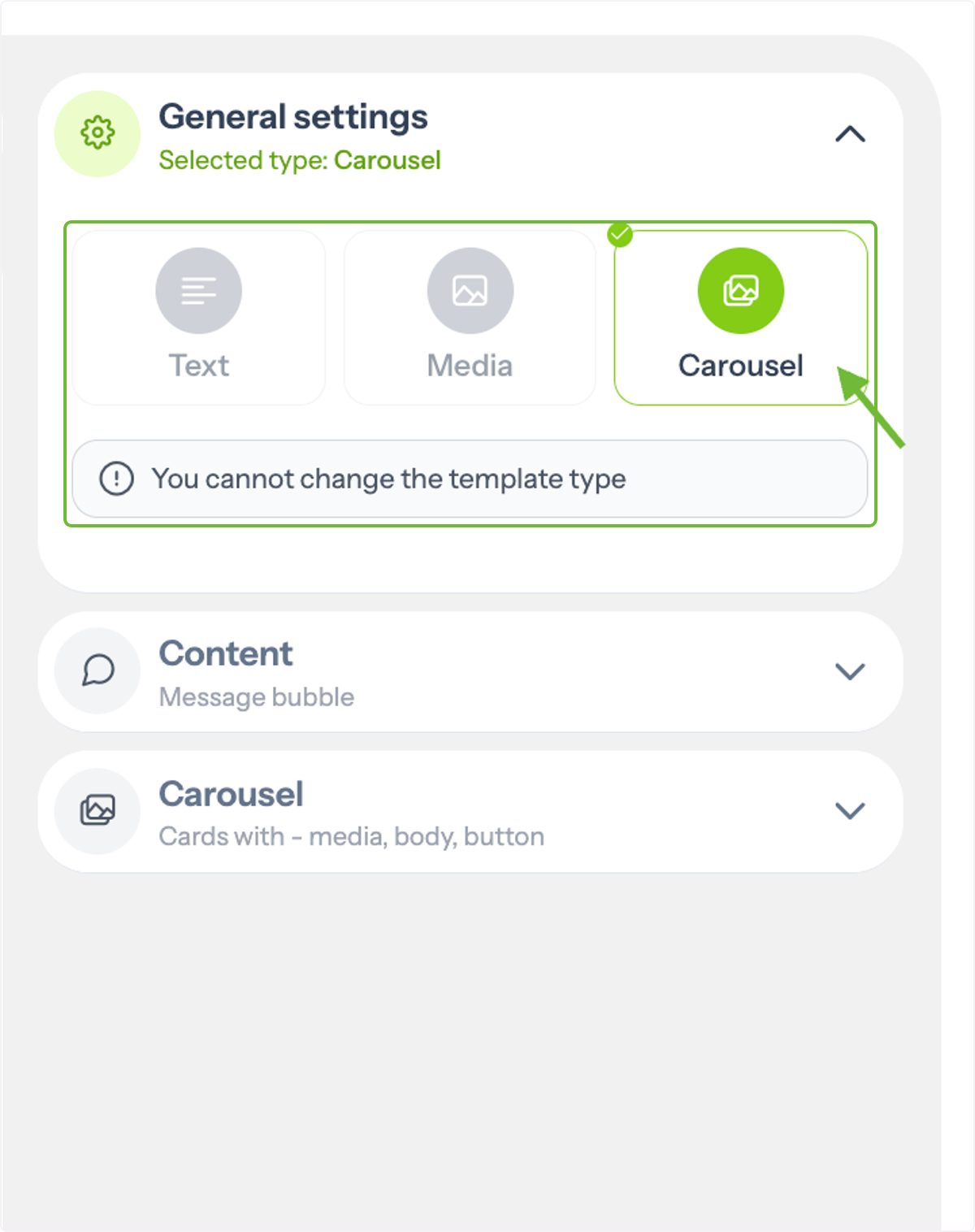
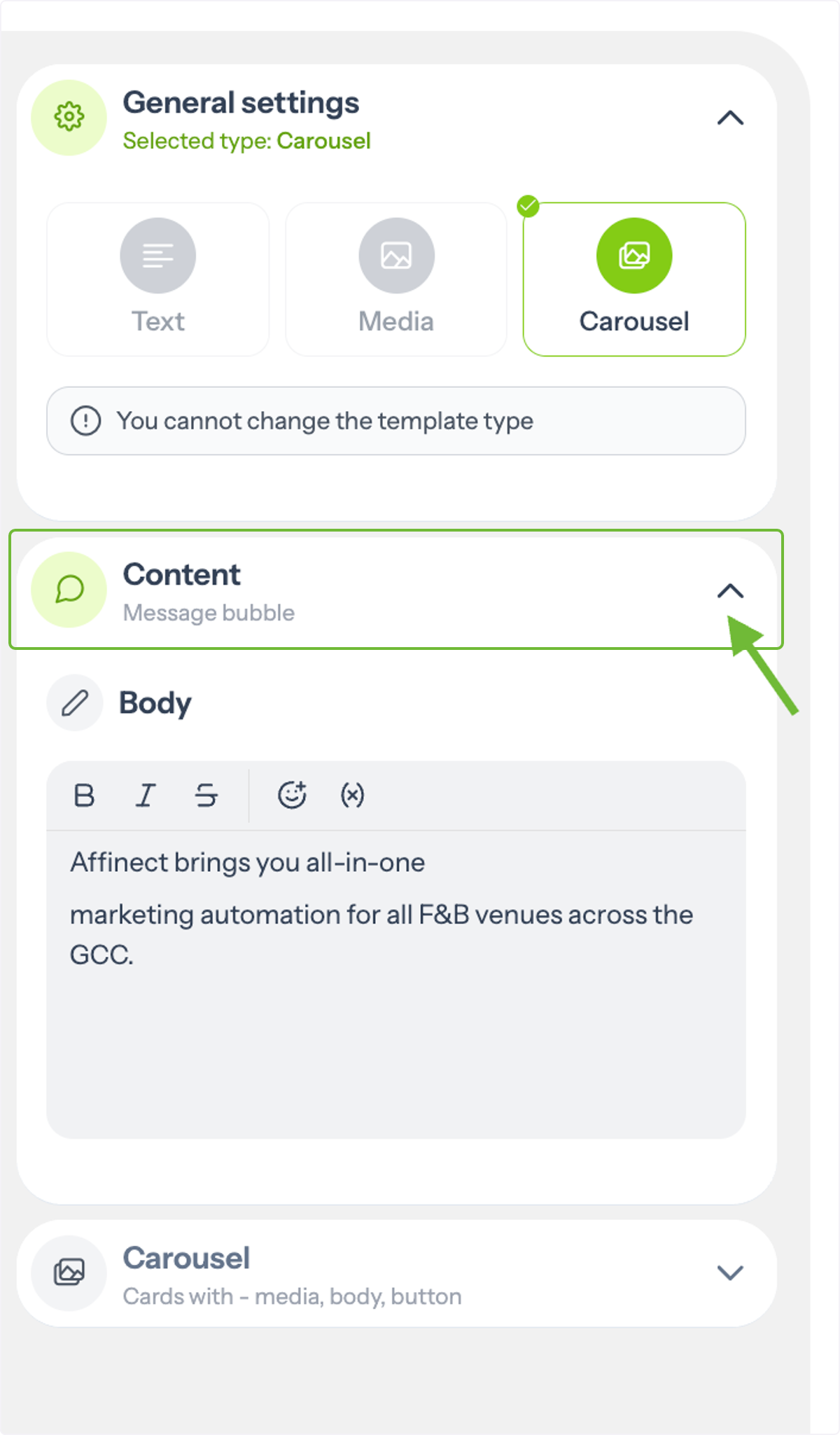
Choose Carousel Format
Select Carousel as your template type.
Add the Main Message
Write the message that will appear above the carousel.
You can enhance it using:
- Text formatting styles
- Emojis
- Personalization variables
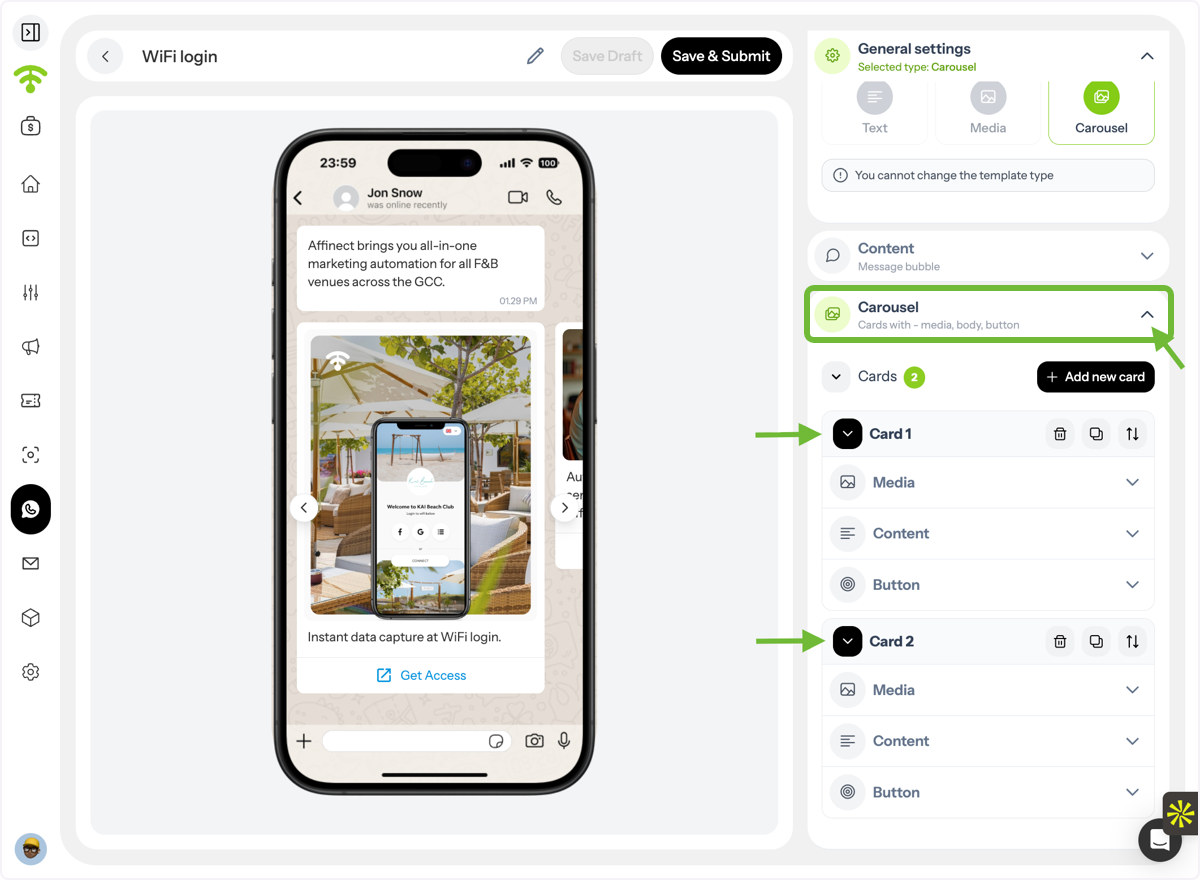
Add Carousel Cards
Click on Carousel to start building your cards.
You can add up to 2 cards, each with its own media, content, and buttons.
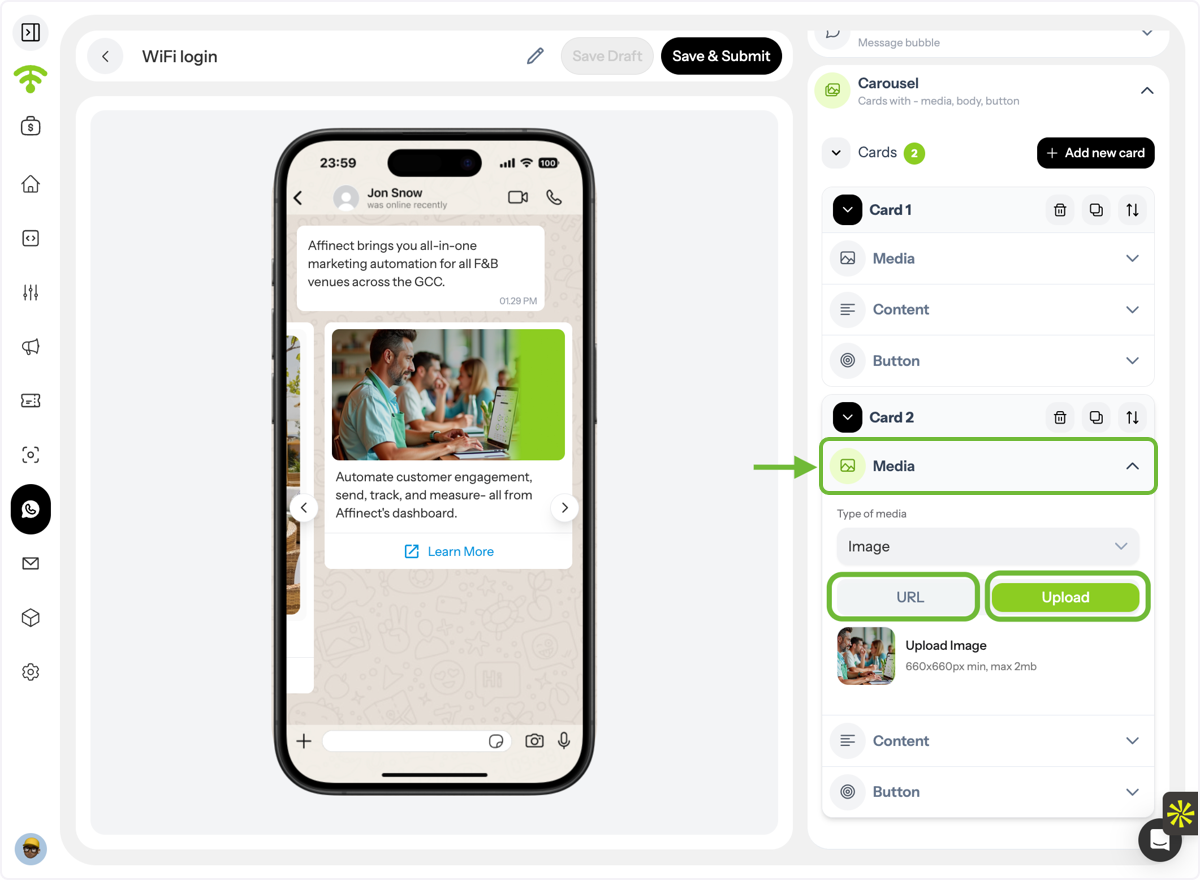
Upload Media
Click Media to add visuals to each card. You can choose from:
- Images
- Videos
- GIFs
- Documents
Upload directly or paste a URL.
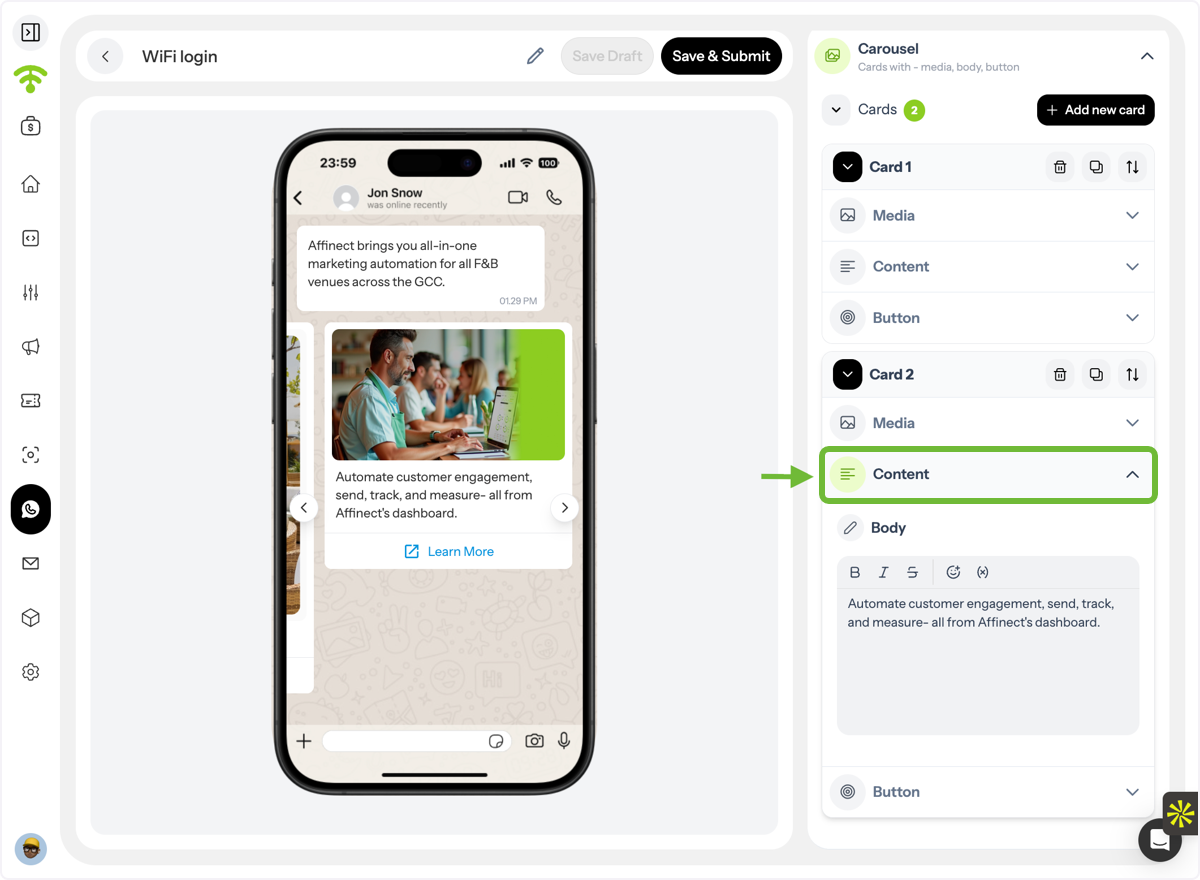
Add Card Content
Click Content to write the text that appears below the media in each card.
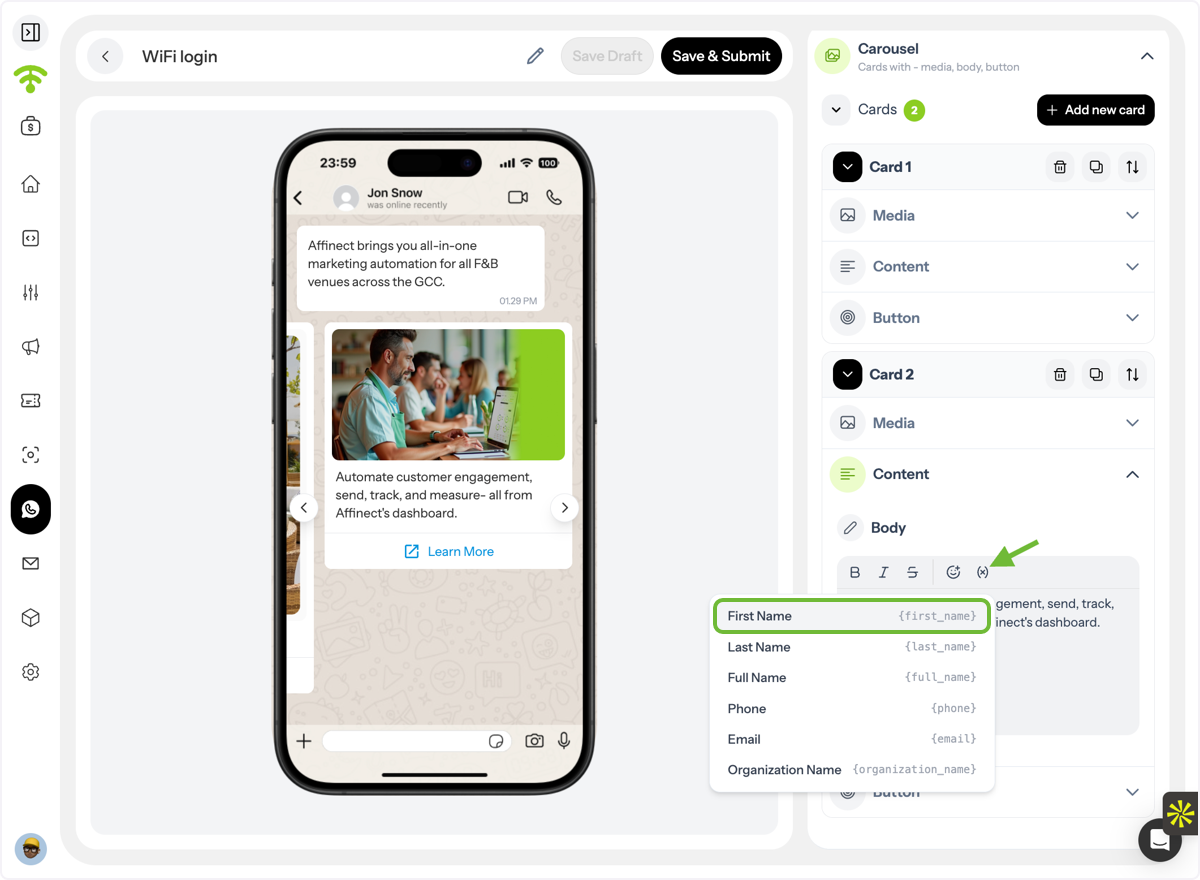
Personalize Your Message
Use variables to tailor messages for each recipient, such as:
- First name / Last name / Full name
- Phone number
- Organization name
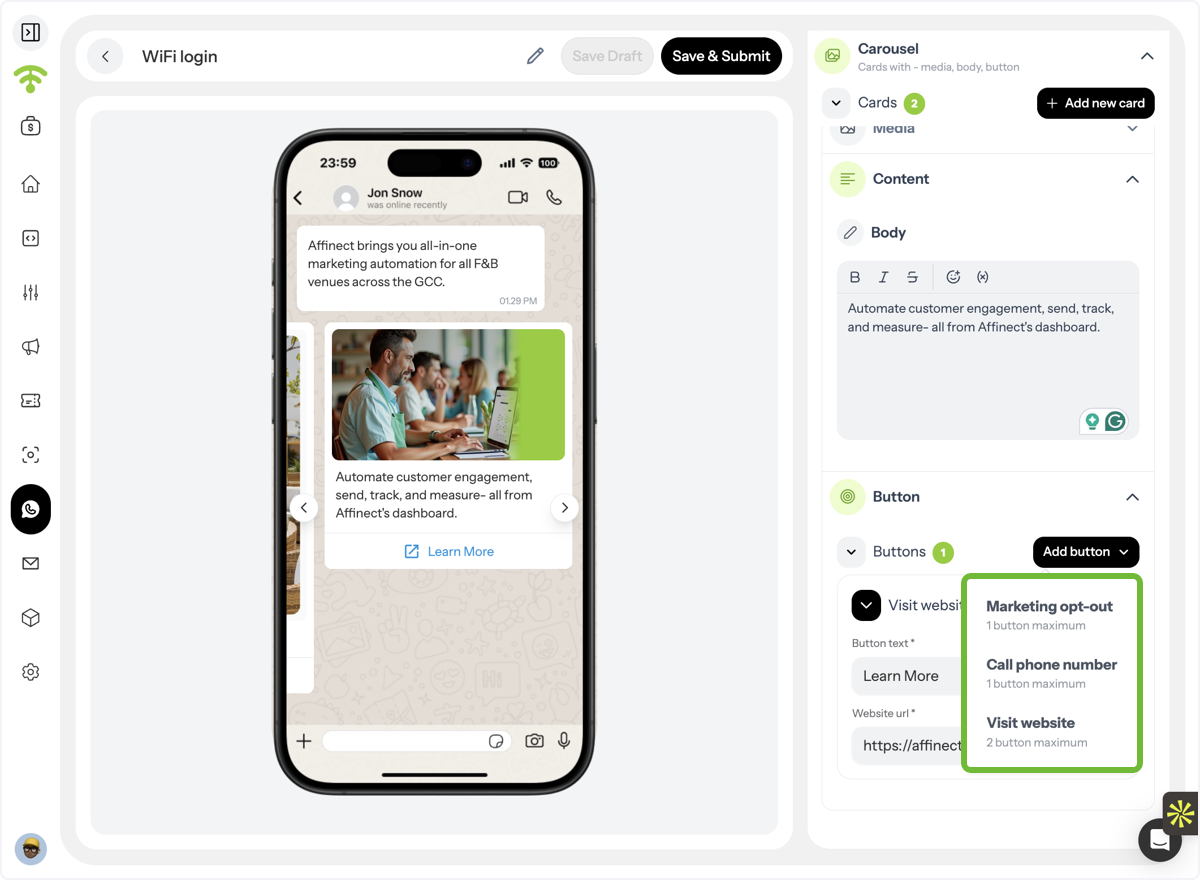
Add Buttons \(Call-to-Action\)
Each card can include two types of buttons:
- Phone number (click-to-call)
- Website (redirect link)
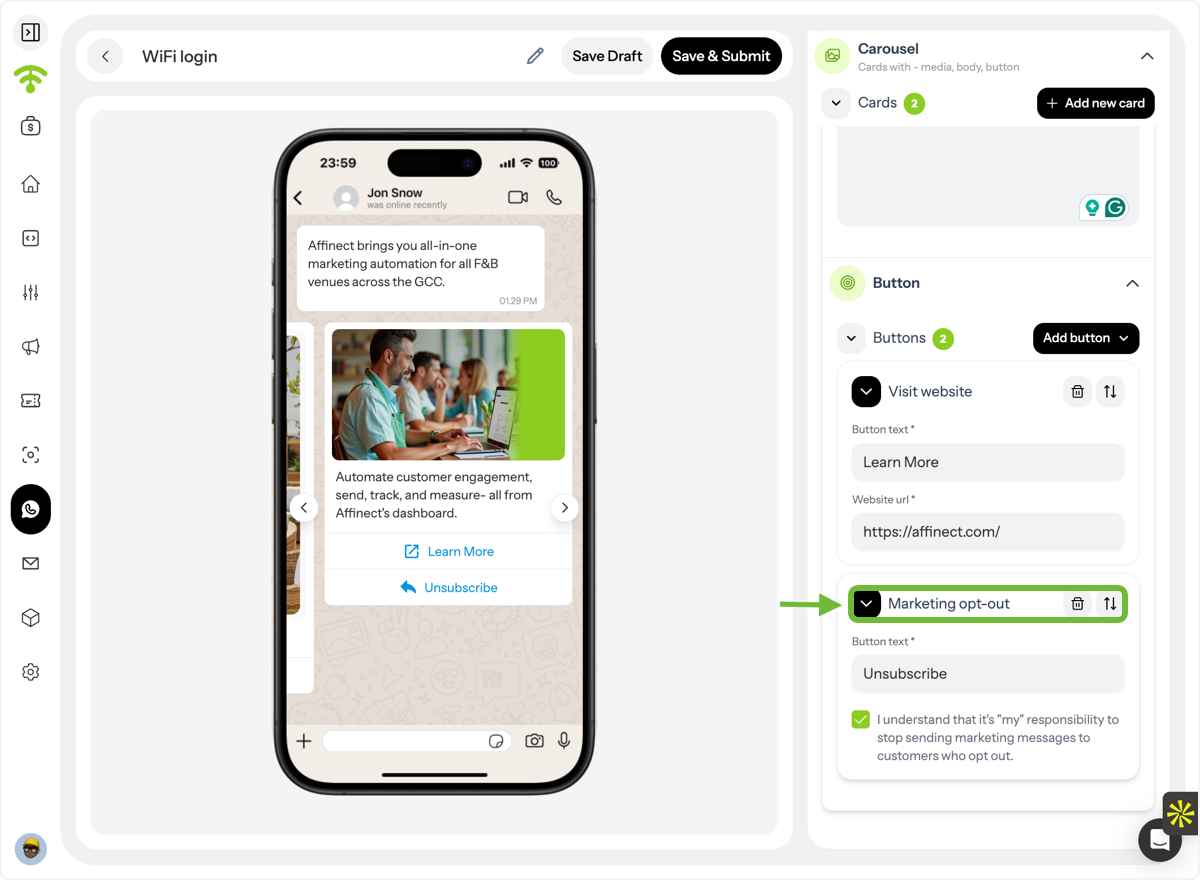
Include Opt-Out Option
A marketing opt-out button is mandatory for all WhatsApp messages to ensure compliance.
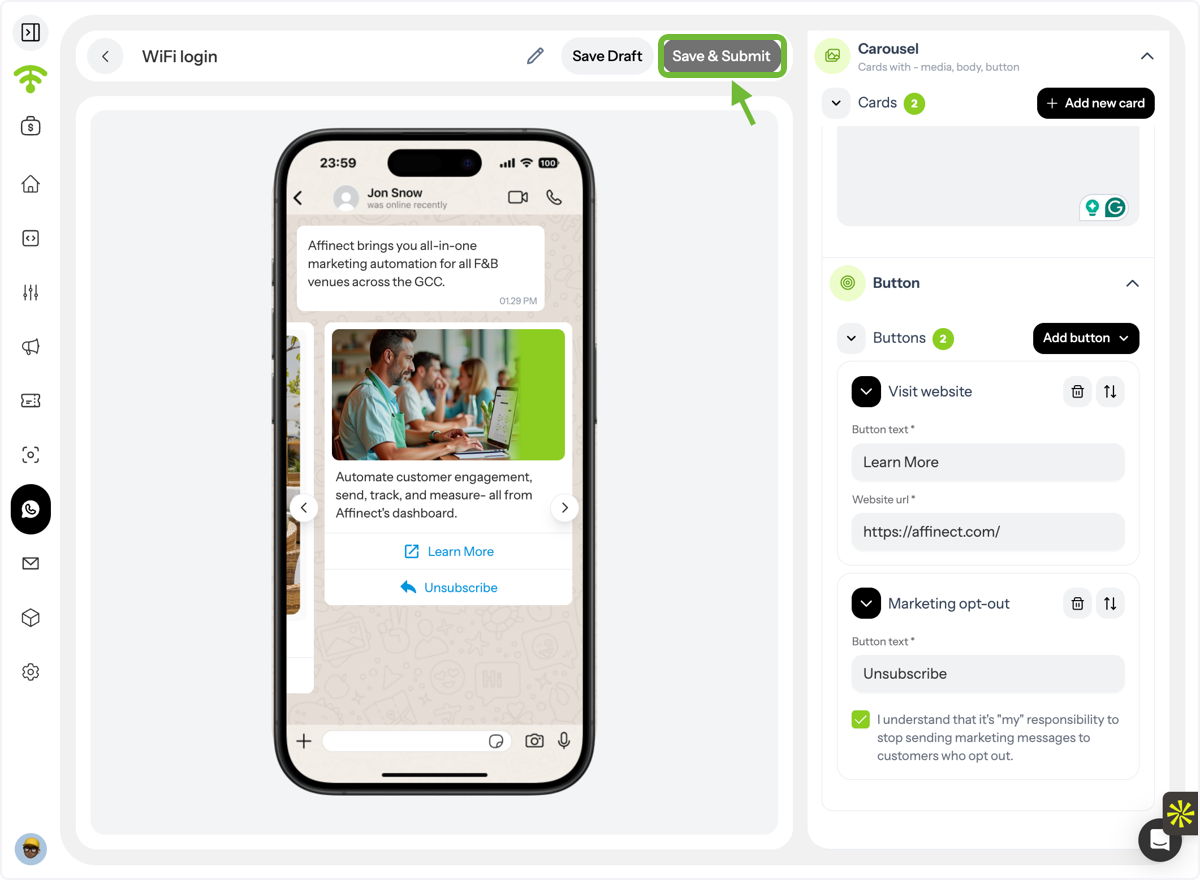
Submit for Approval
Click Save & Submit to send your template to Meta for review.
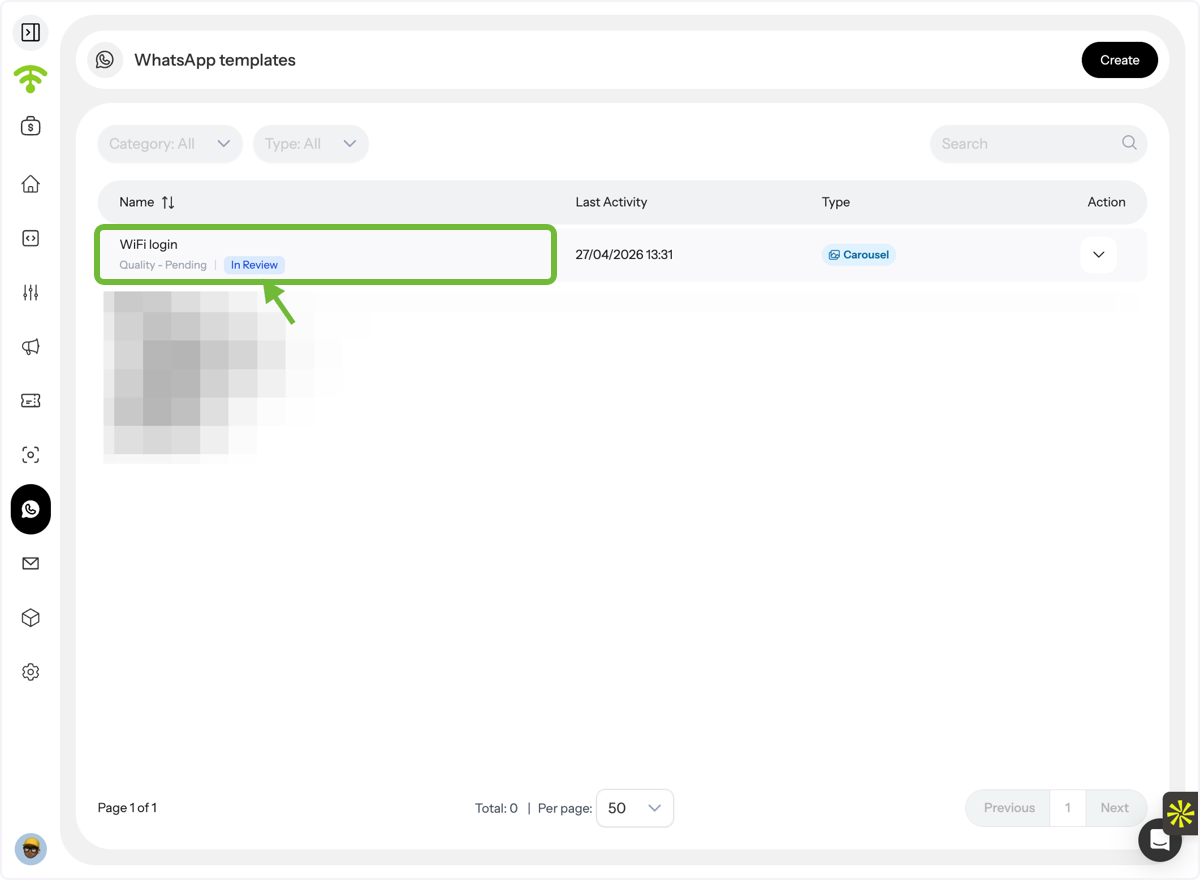
Track Approval Status
In the WhatsApp Templates list, your template will appear as In Review.
Handle Rejections \(If Any\)
If rejected:
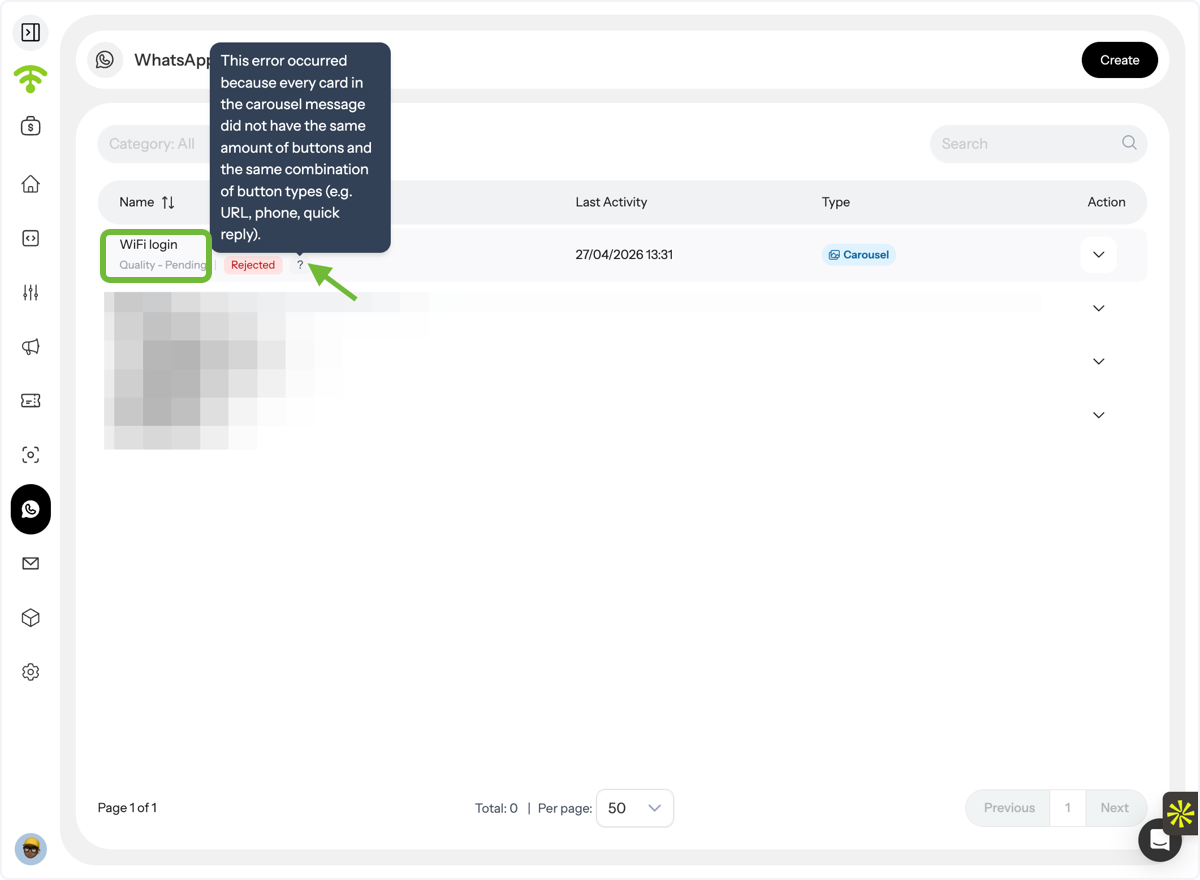
- Check that all carousel cards have the same number and type of buttons
- Fix any issues and resubmit for approval