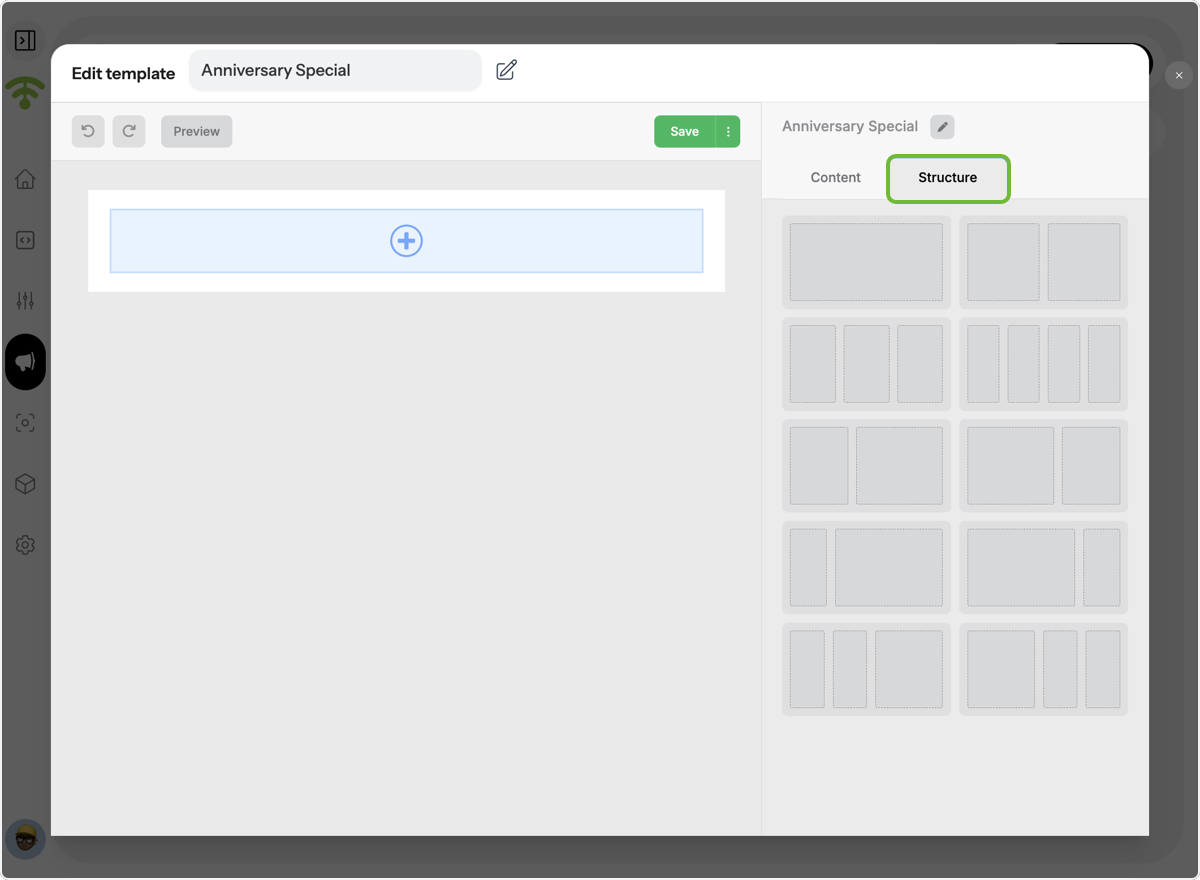
Design email templates that match your brand and message. In this guide, you’ll learn how to create a new campaign template from scratch or customize an existing one.
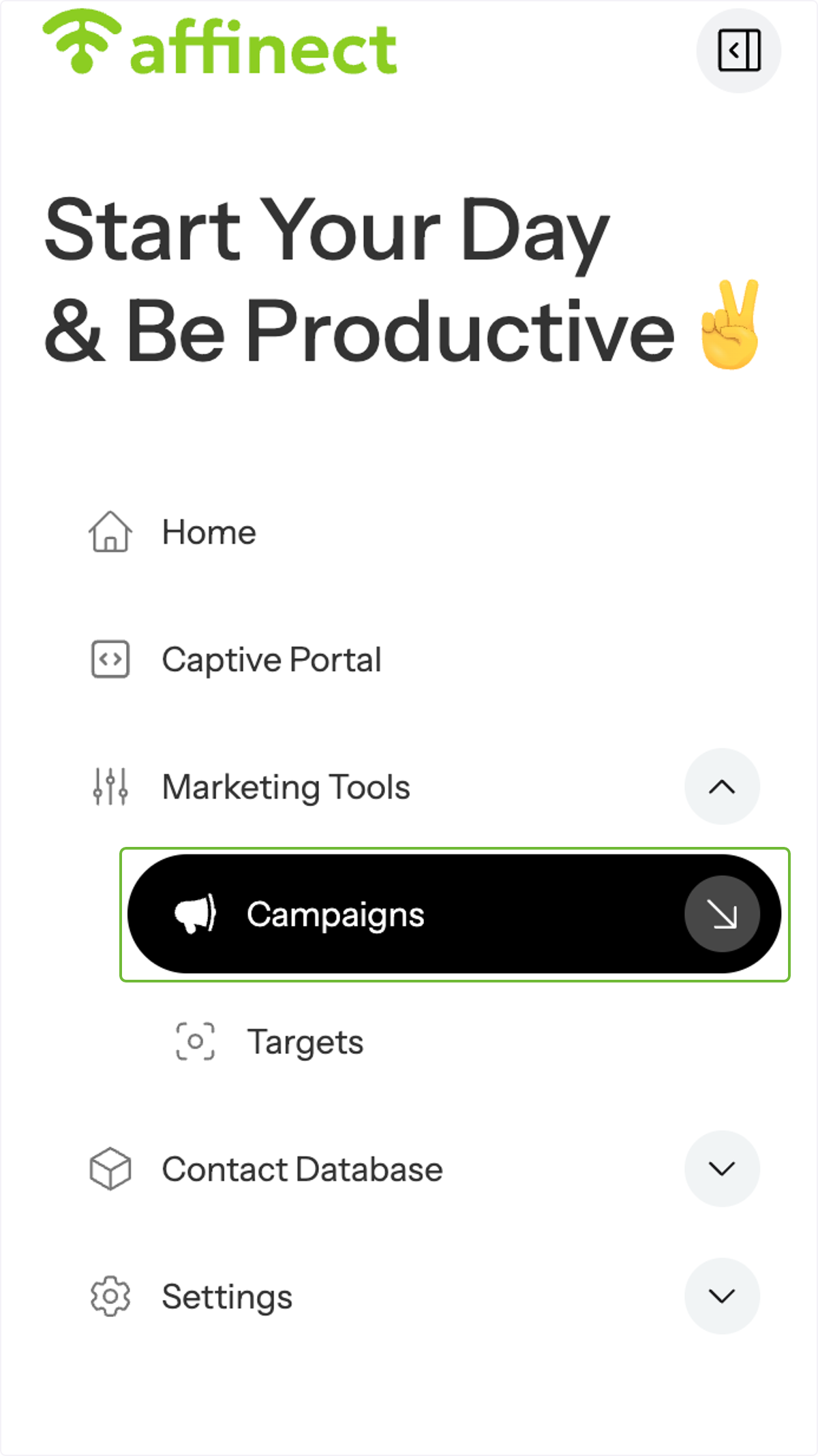
Go to Campaigns
Click on Campaigns in the main menu to access your campaign dashboard.
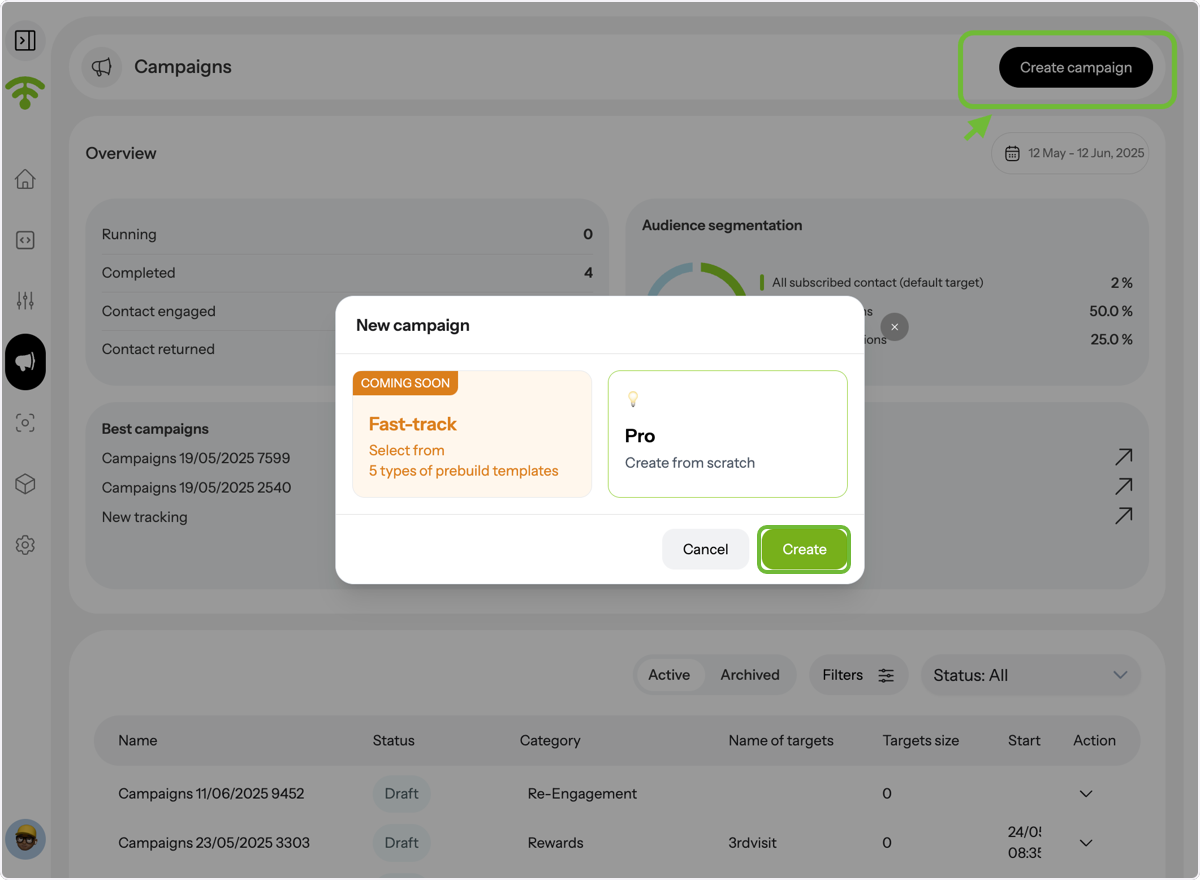
Start a New Campaign
Click on Create Campaign at the top right corner, then select Create again from the confirmation box that appears.
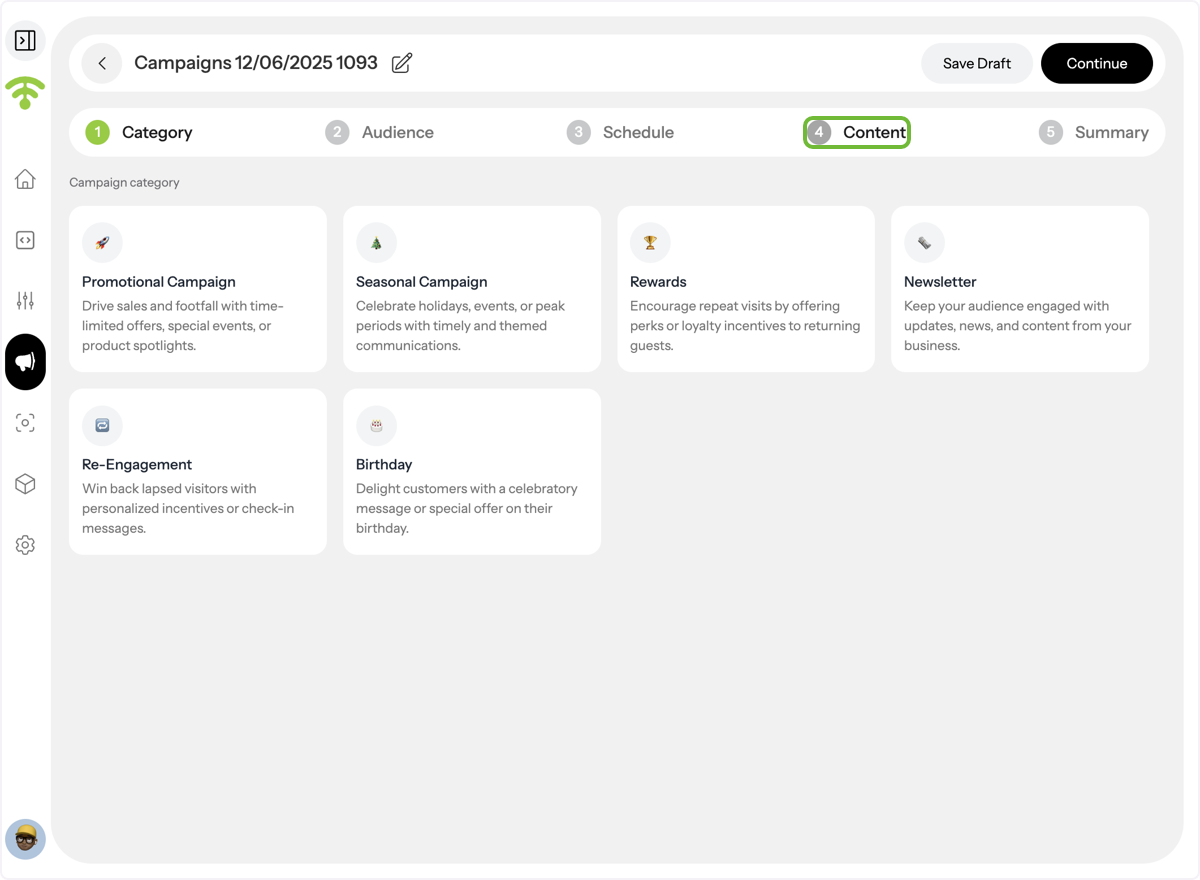
Navigate to Content
Once inside the campaign setup, click on the Content tab.
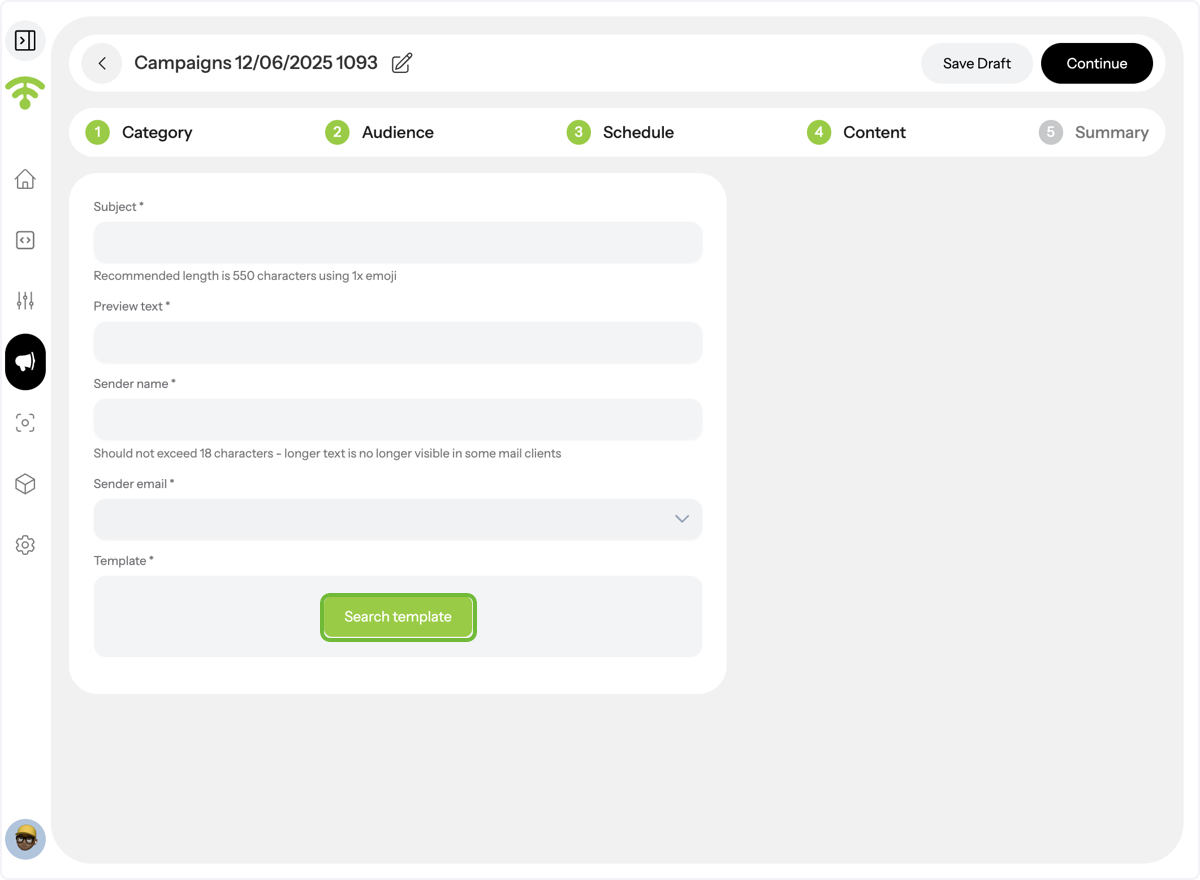
Browse Existing Templates
Click on Search Template to view previously saved templates. You can also edit these templates if needed.
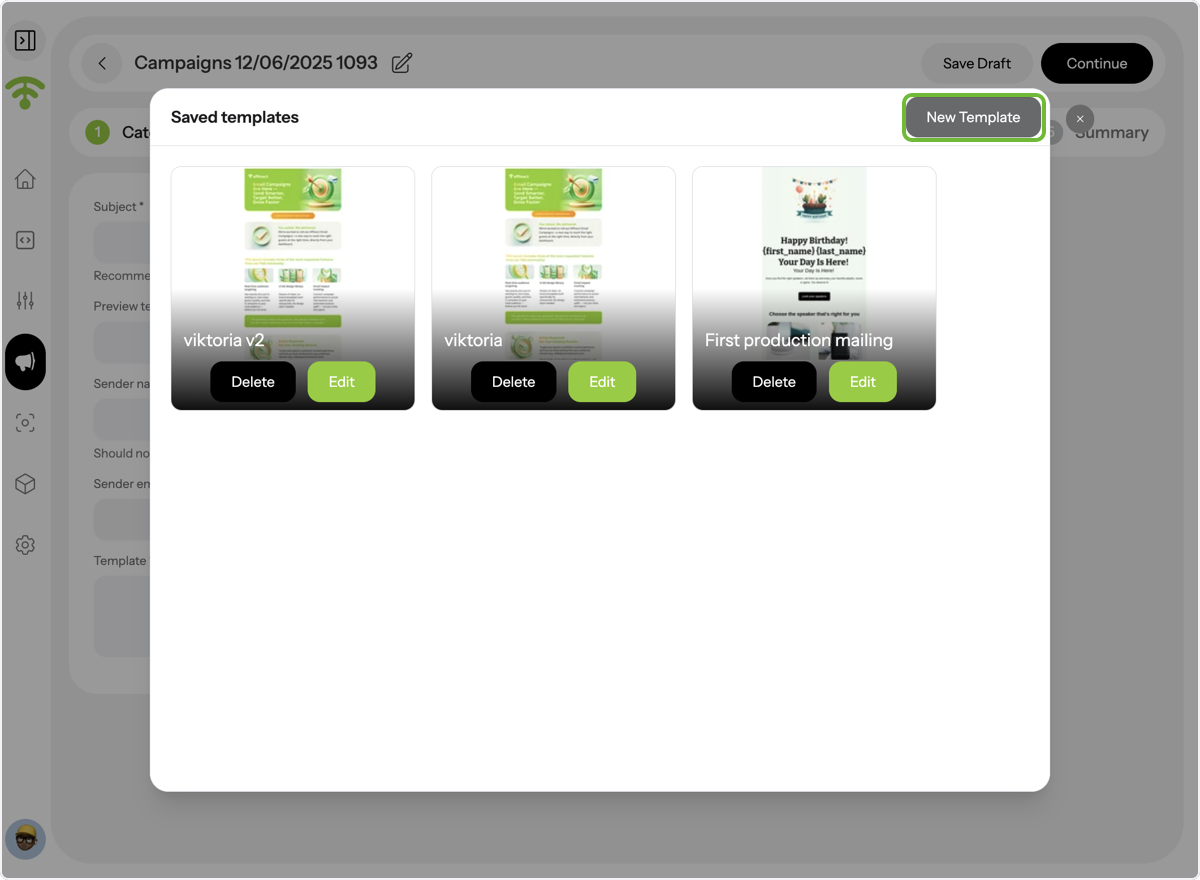
Create a New Template
To build a new template from scratch, click on New Template in the top right corner.
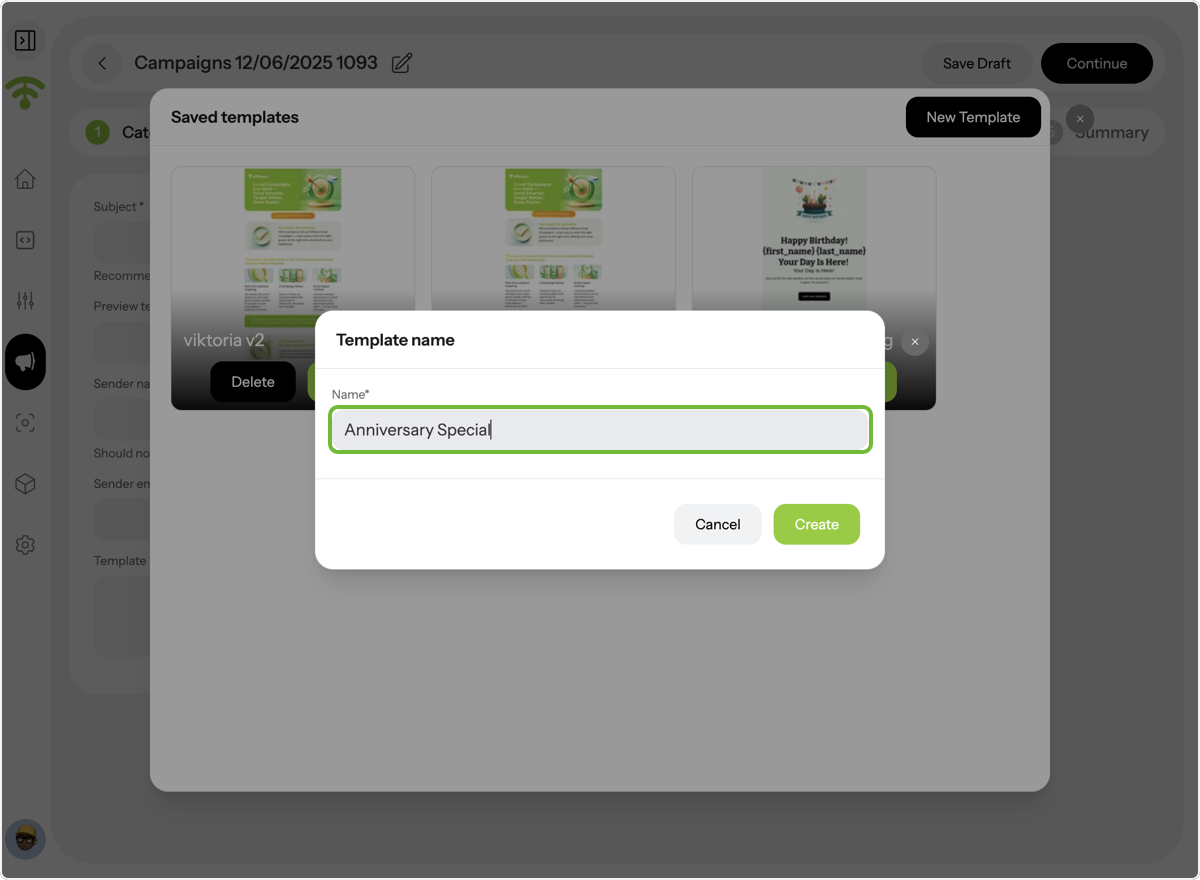
Name and Create Your Template
A pop-up will appear. Give your template a name and click Create to proceed.
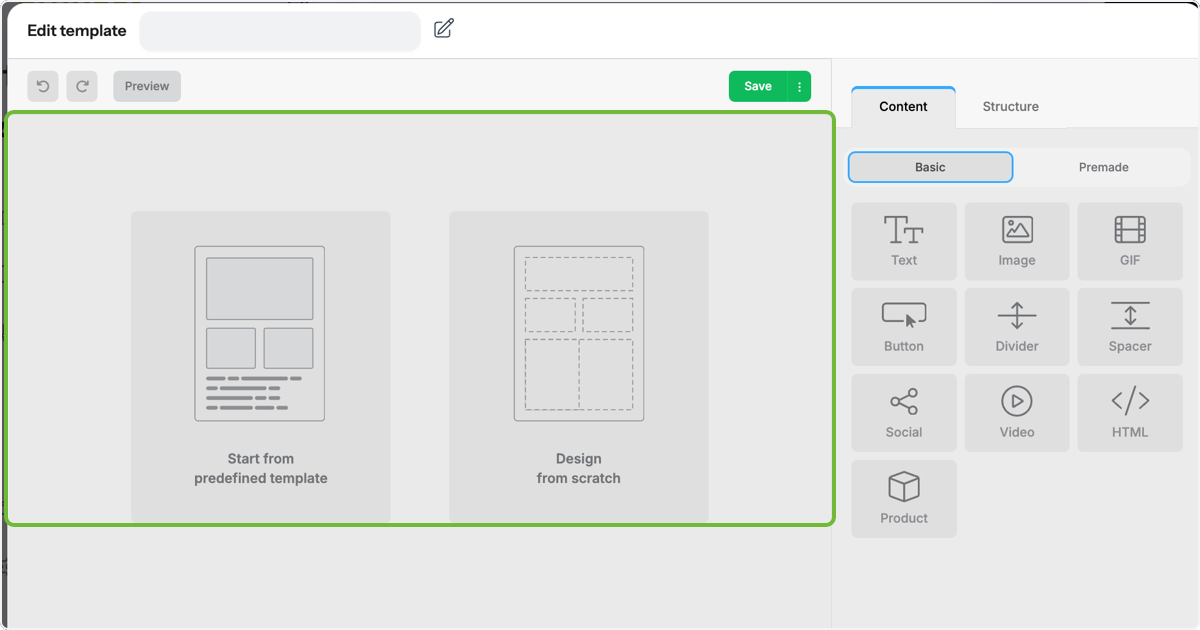
Choose Your Template Style
You can either start from a predefined template или design your own from scratch.
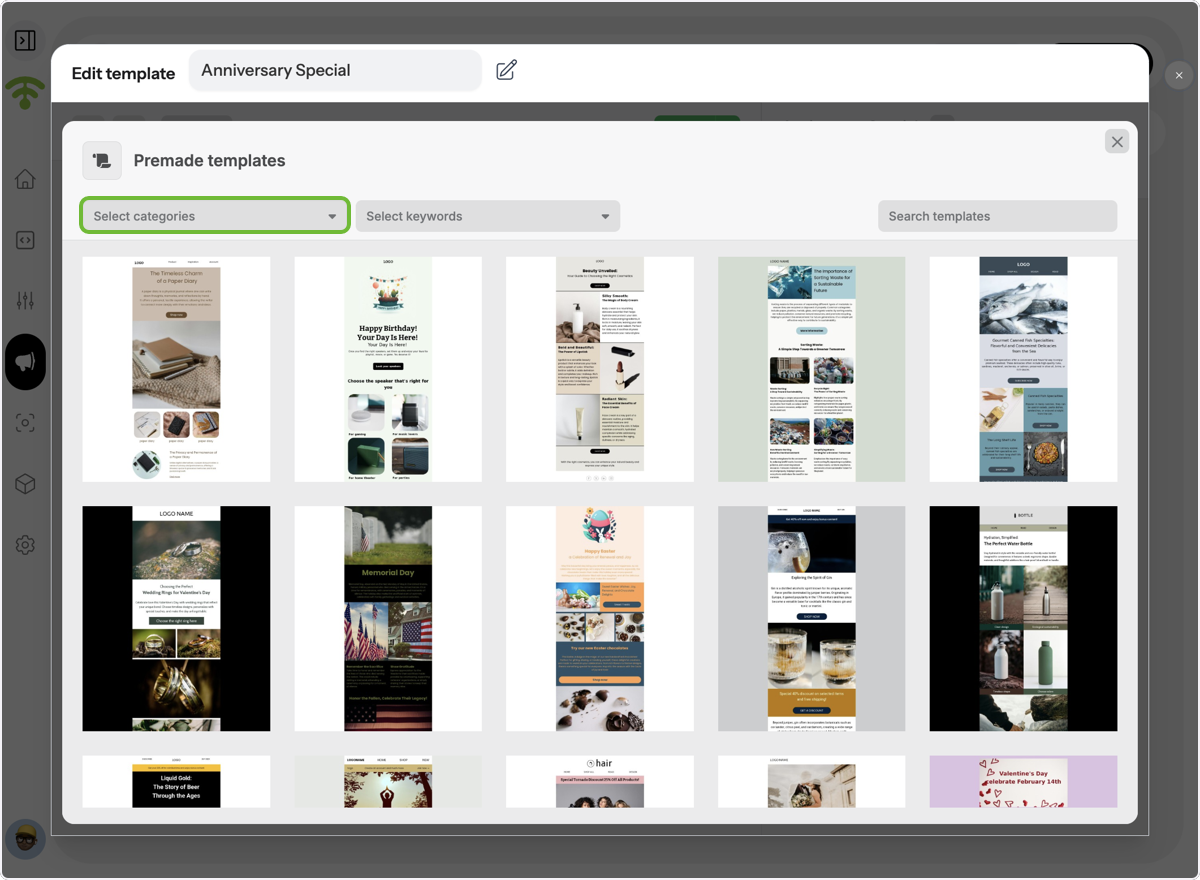
Explore Predefined Templates
Browse templates by category or search using keywords to find the right layout, design, and style.
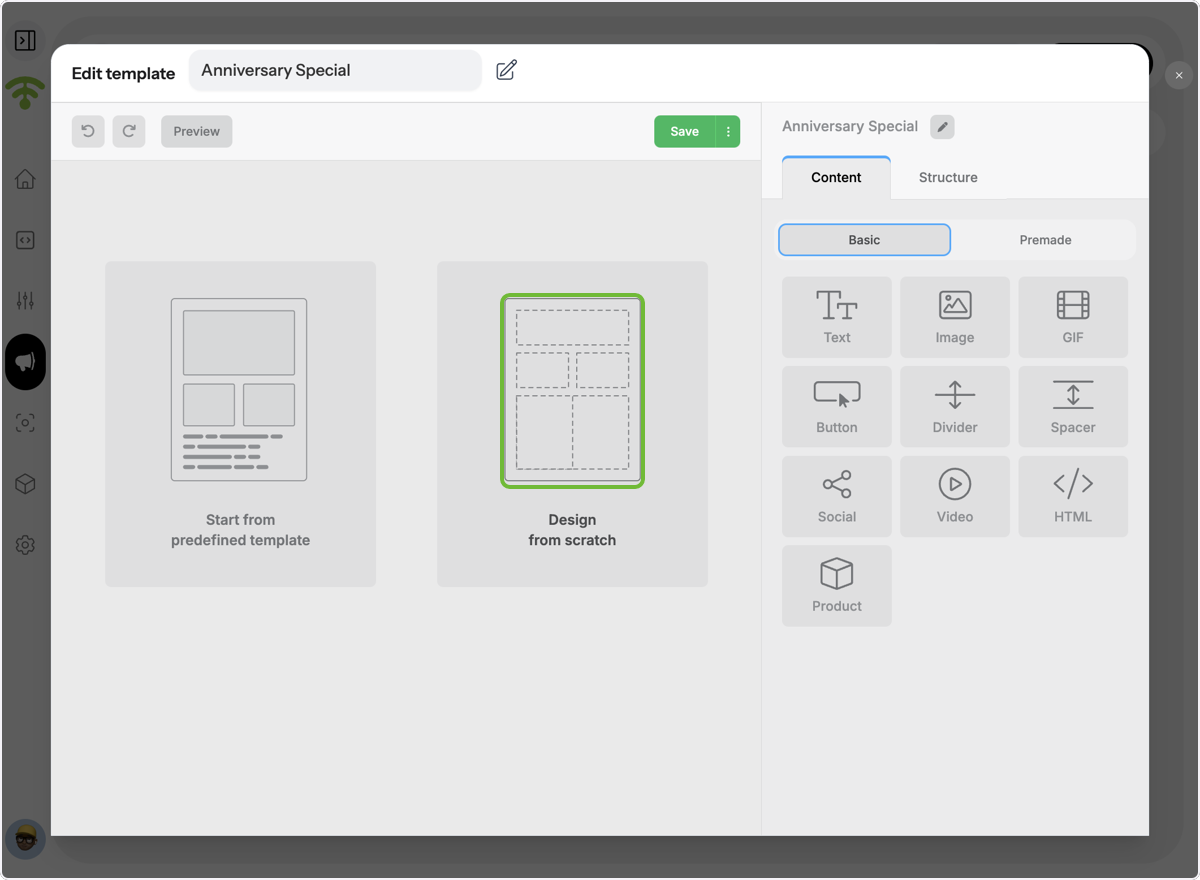
Design From Scratch
Click on Design from Scratch to create a fully custom layout.
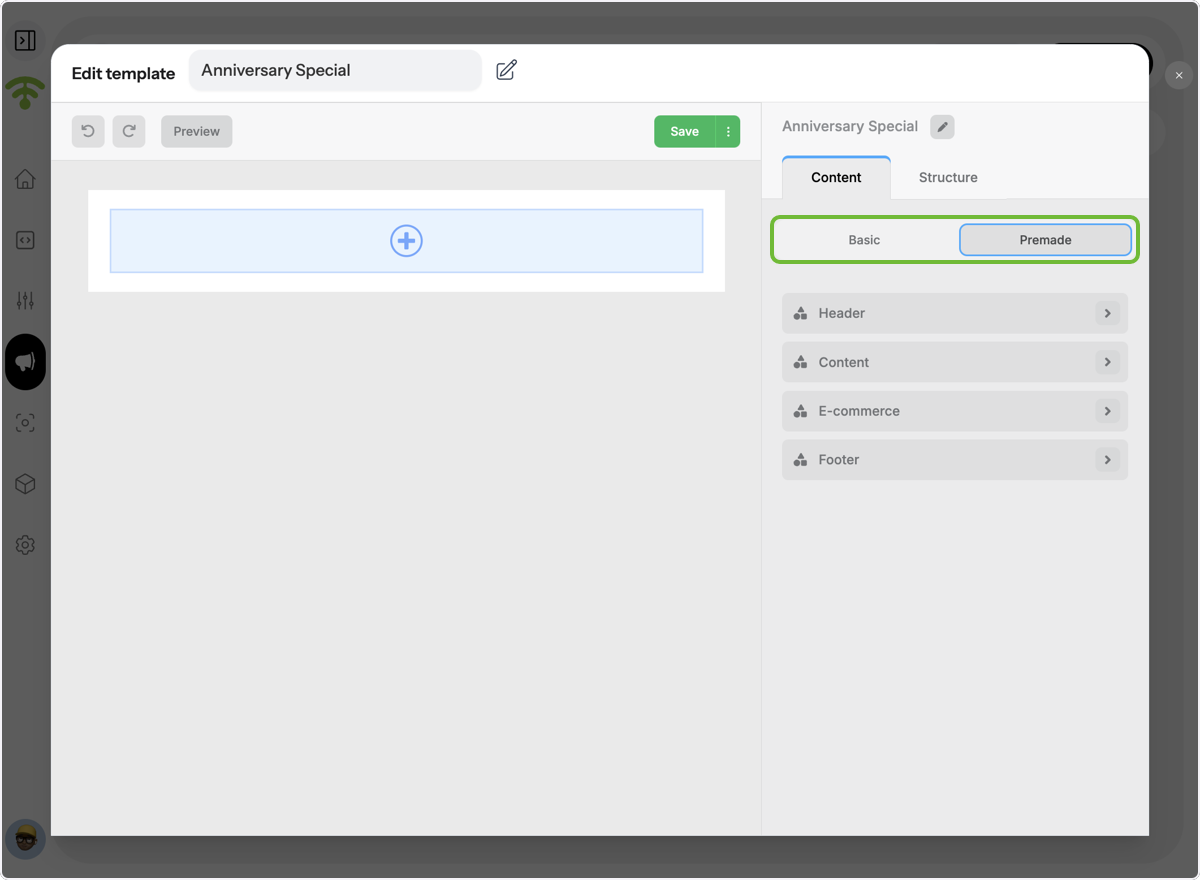
Add Pre-Made Elements
Under the Content tab on the right, drag and drop pre-made elements like headers, content blocks, footers, or even e-commerce-specific modules.
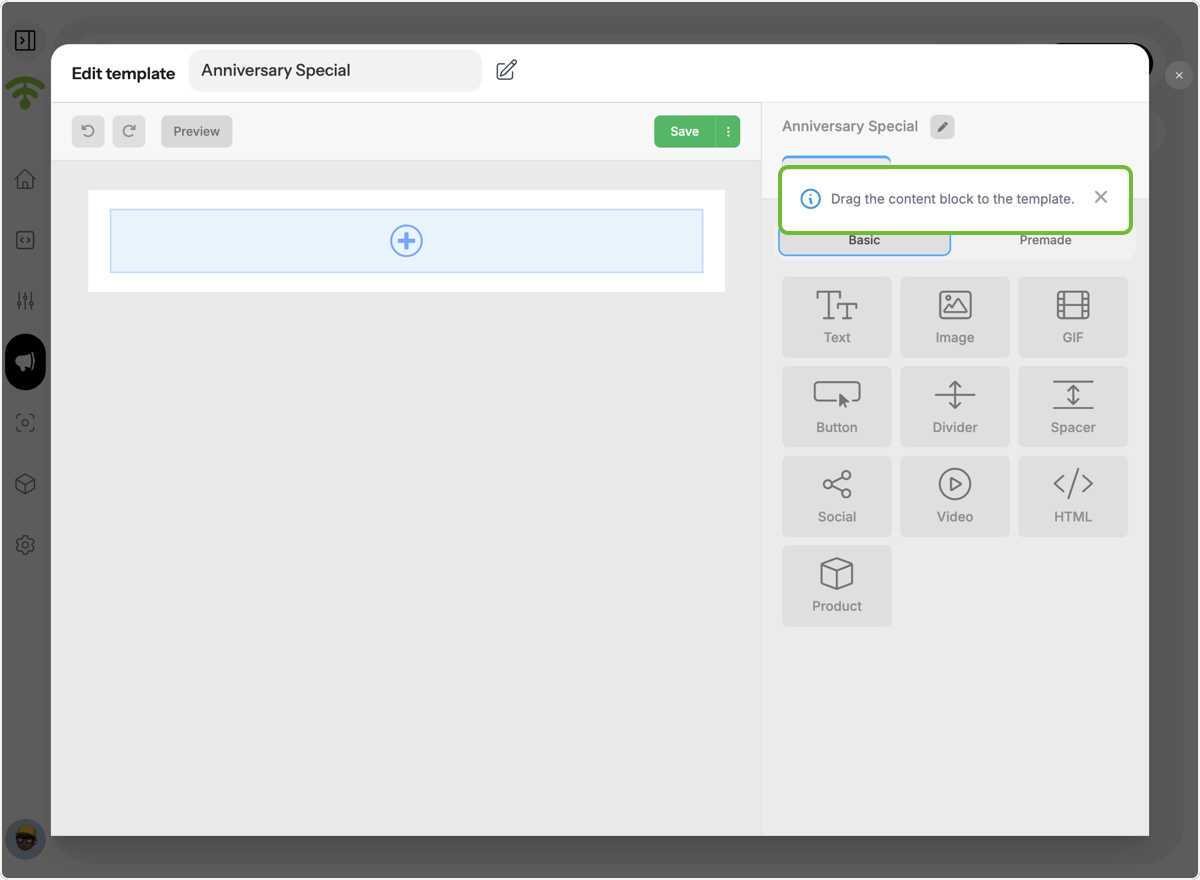
Customize with Content Blocks
To build your own layout, click on Basic under Content and drag blocks such as text, images, videos, buttons, GIFs, HTML, and social links into your template.
Choose Your Structure
Switch to the Structure tab next to Content to define column layouts and formatting. Once you’re happy with your design, click Save, and you’re good to go!