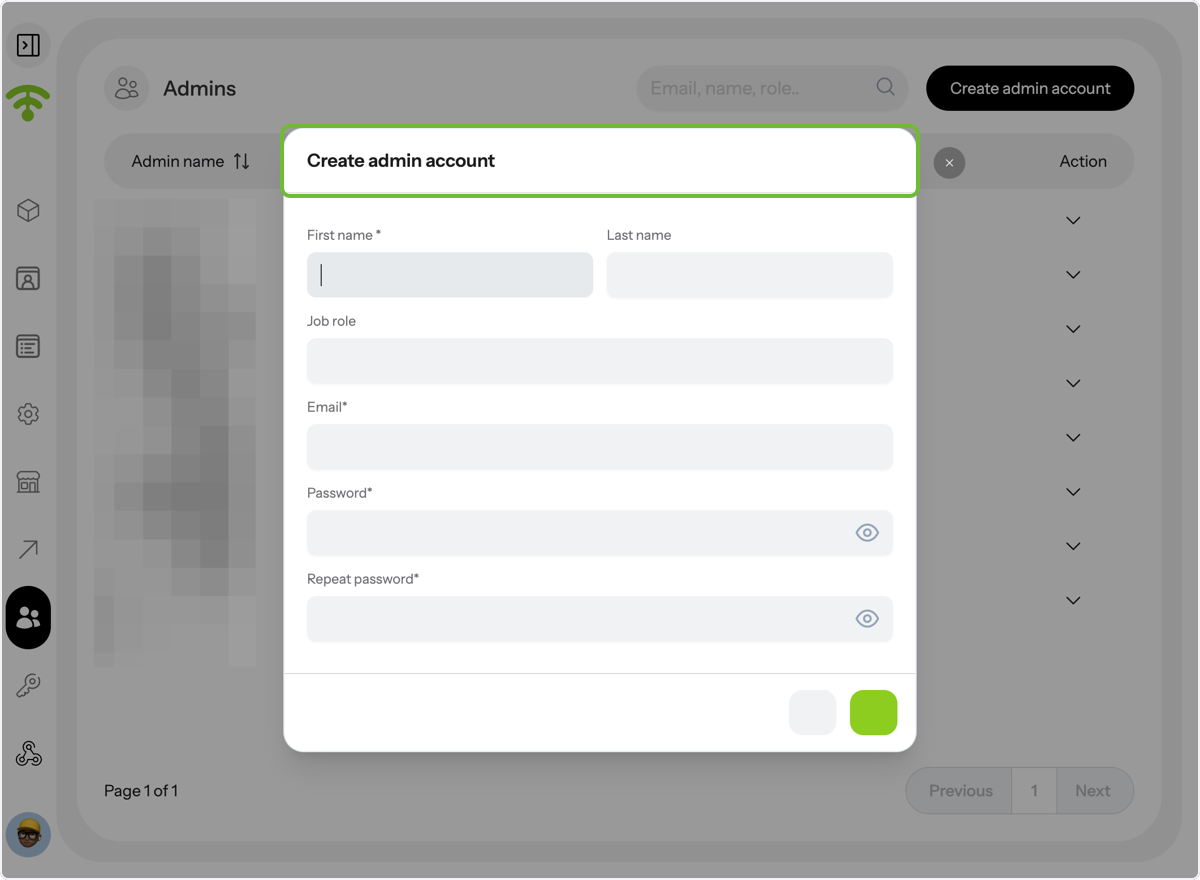
Learn how to update an existing admin account and create a new one in Affinect.
Editing Admin Details in Affinect
Access Admin Settings
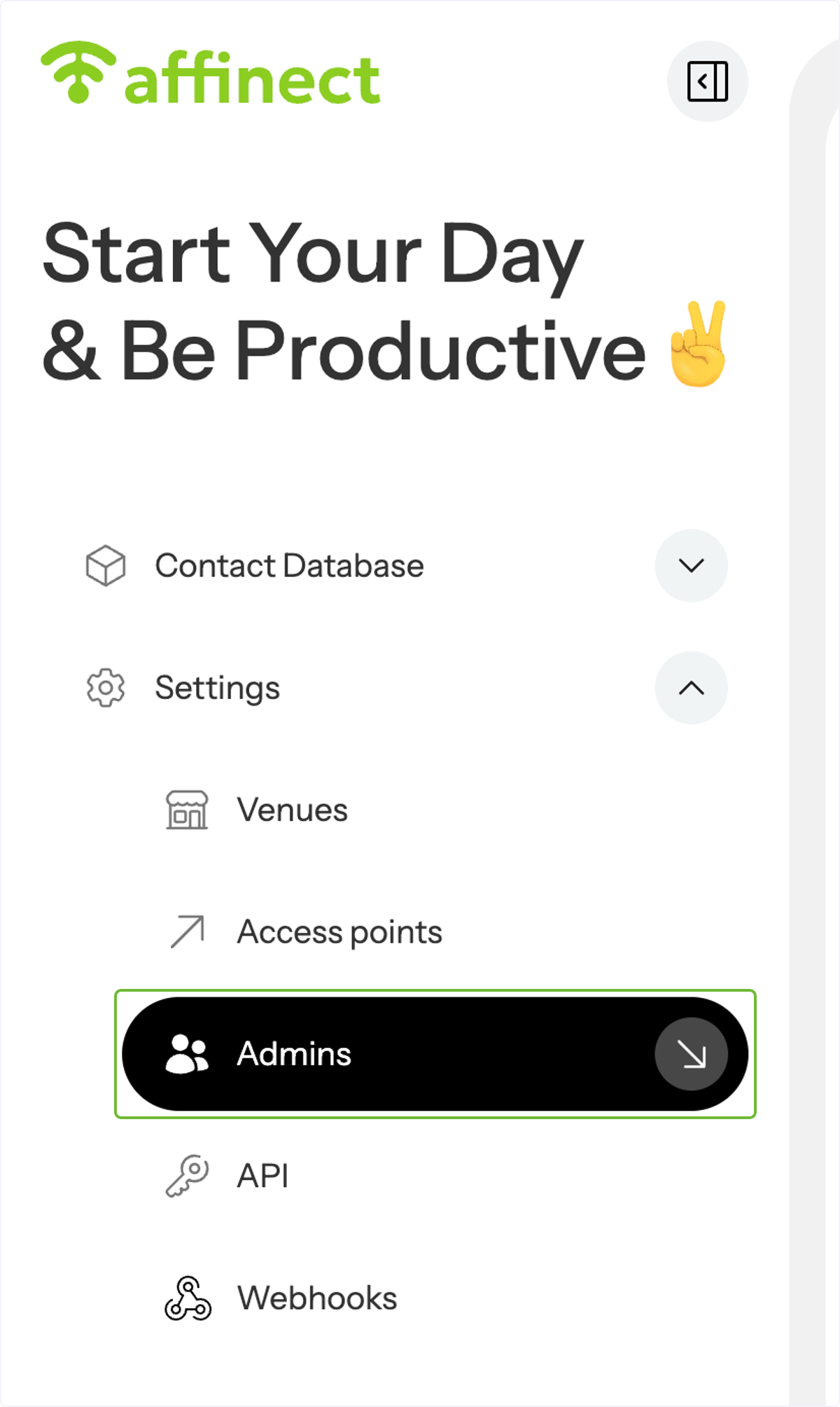
Click 'Settings' on the left-hand side of the dashboard and select Admins from the drop-down menu.
View or Search Existing Admins
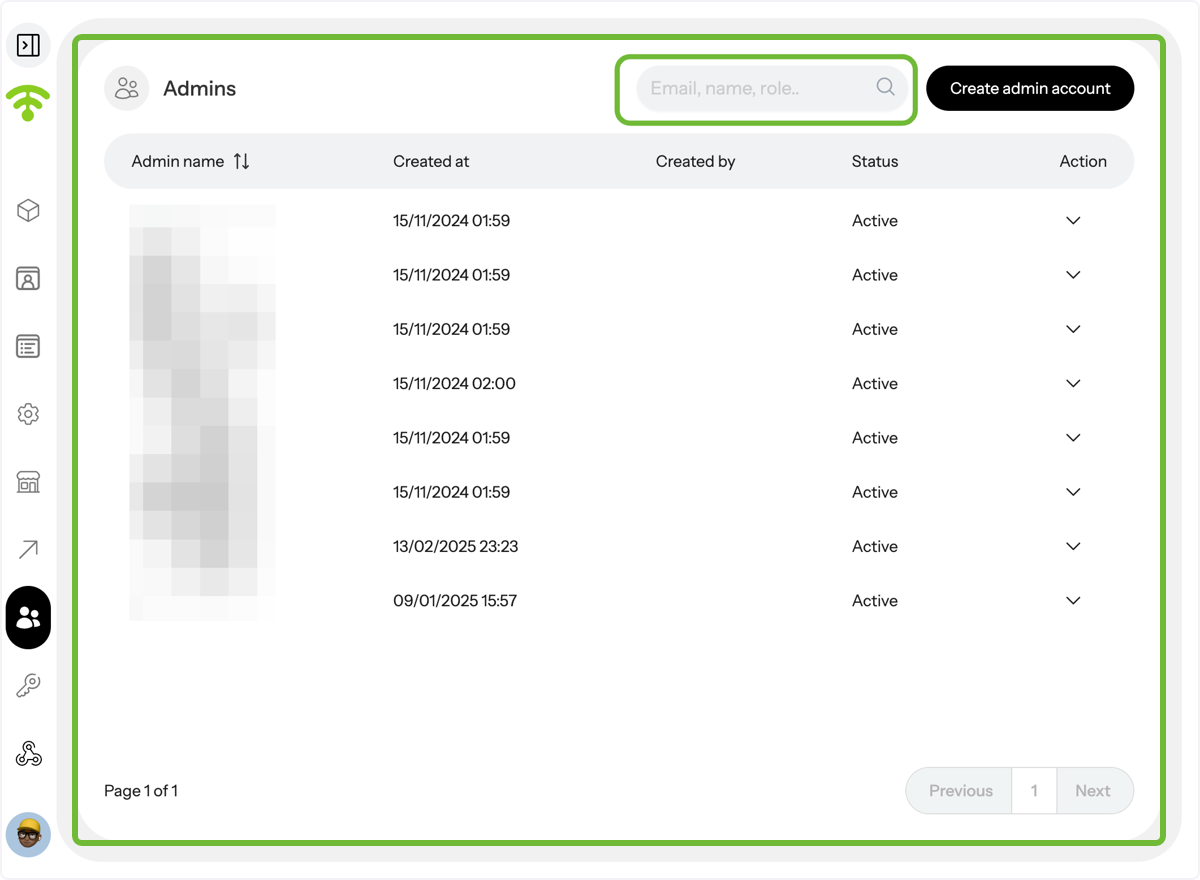
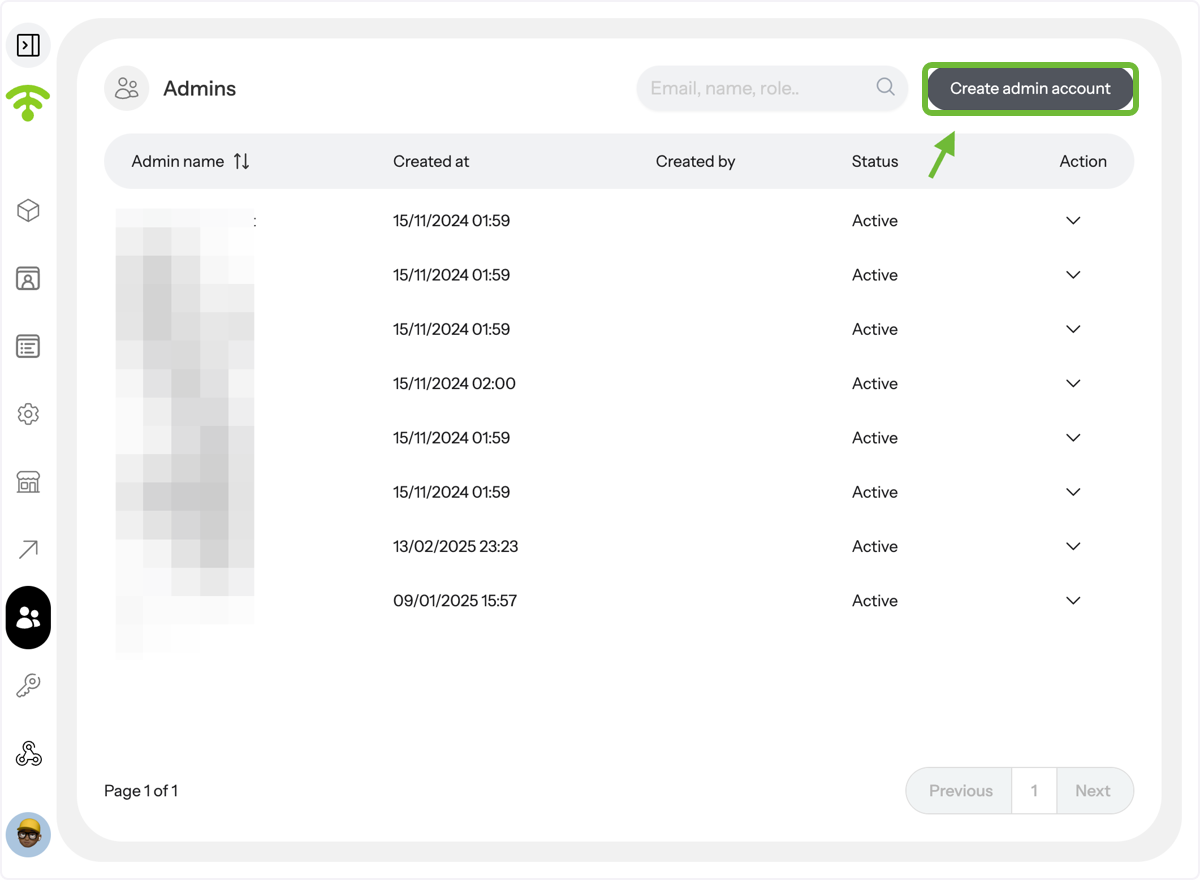
- A preview of the admins will appear, showing their names and when their account was created.
- You can also search for admins in the search bar for quick access by providing their email, name, and role.
Edit Admin Details
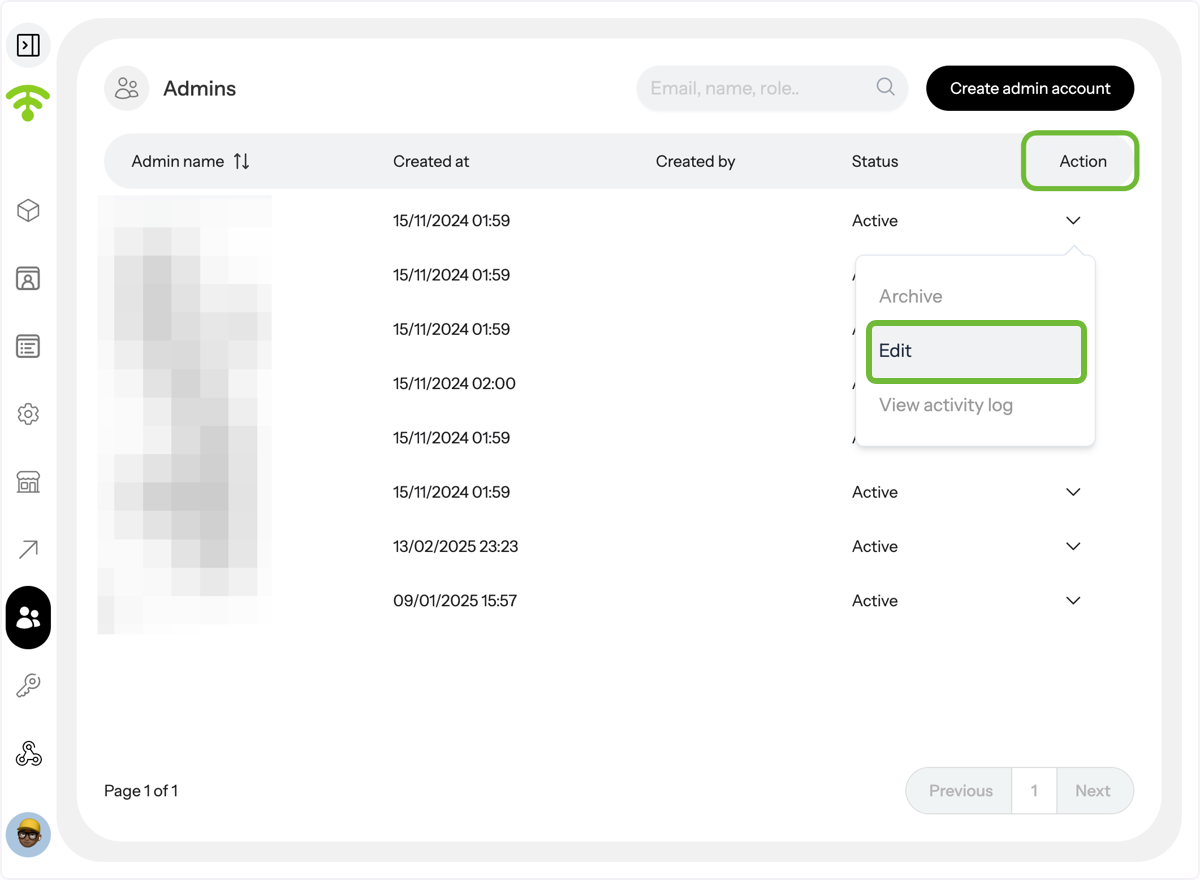
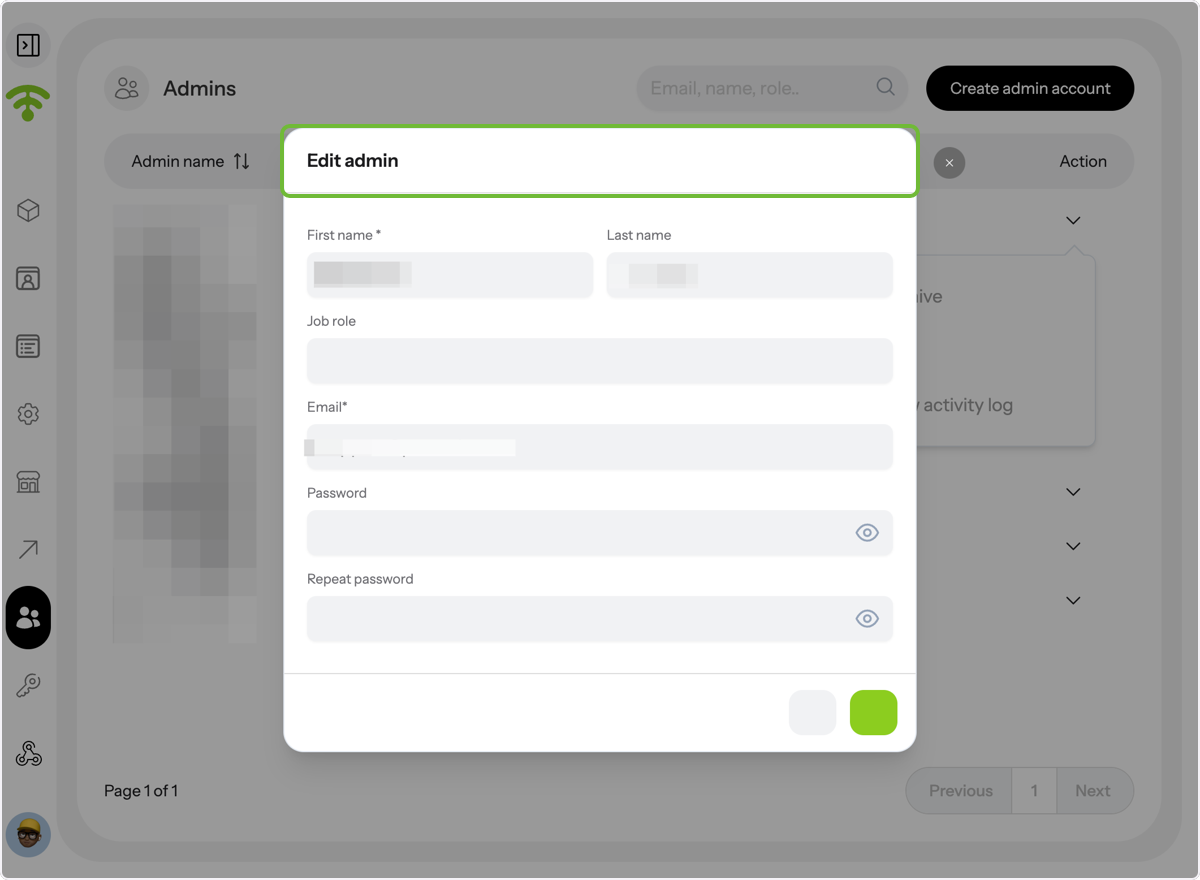
To edit an admin’s details, click ‘Actions’ next to their name and select ‘Edit’ from the drop-down menu.
Update Admin Information
The admin’s general details will appear, including their first name, last name, job role, email address, and admin password. You can view and edit this information as needed.
Creating New Admin Account in Affinect
Start a New Admin Profile
To add a new admin, click on 'Create admin account' in the top-right corner
Complete the Admin Setup
A tab similar to the 'Edit admin' will appear—follow the same steps as above to complete the process. Tada! That's all. Happy Connecting and Granting Access!
PS: Always remind the admins to reset their passwords once they access the account for the first time.